Shadowrocket Official Manual · Getting Started
Shadowrocket Setup Guide:
Import, Connect & Verify
Import your existing configuration, choose Global Routing, turn on the connection, then check the results with real requests. Follow the five steps below. If a step doesn’t work, troubleshoot that step first instead of changing multiple Settings at once.
Add Server: Add a Server or Import a Subscription
First, check whether you have a subscription URL or individual server details. Choose one method; you don’t need to add both.
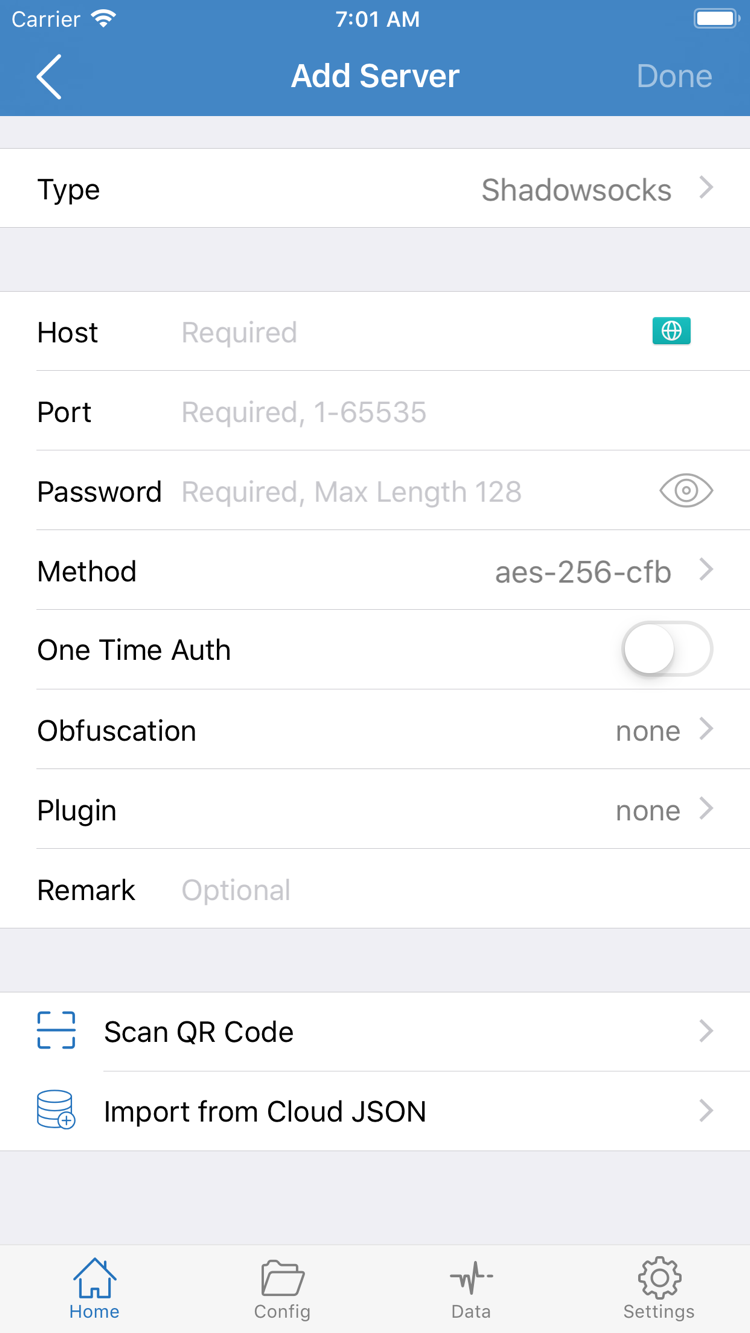
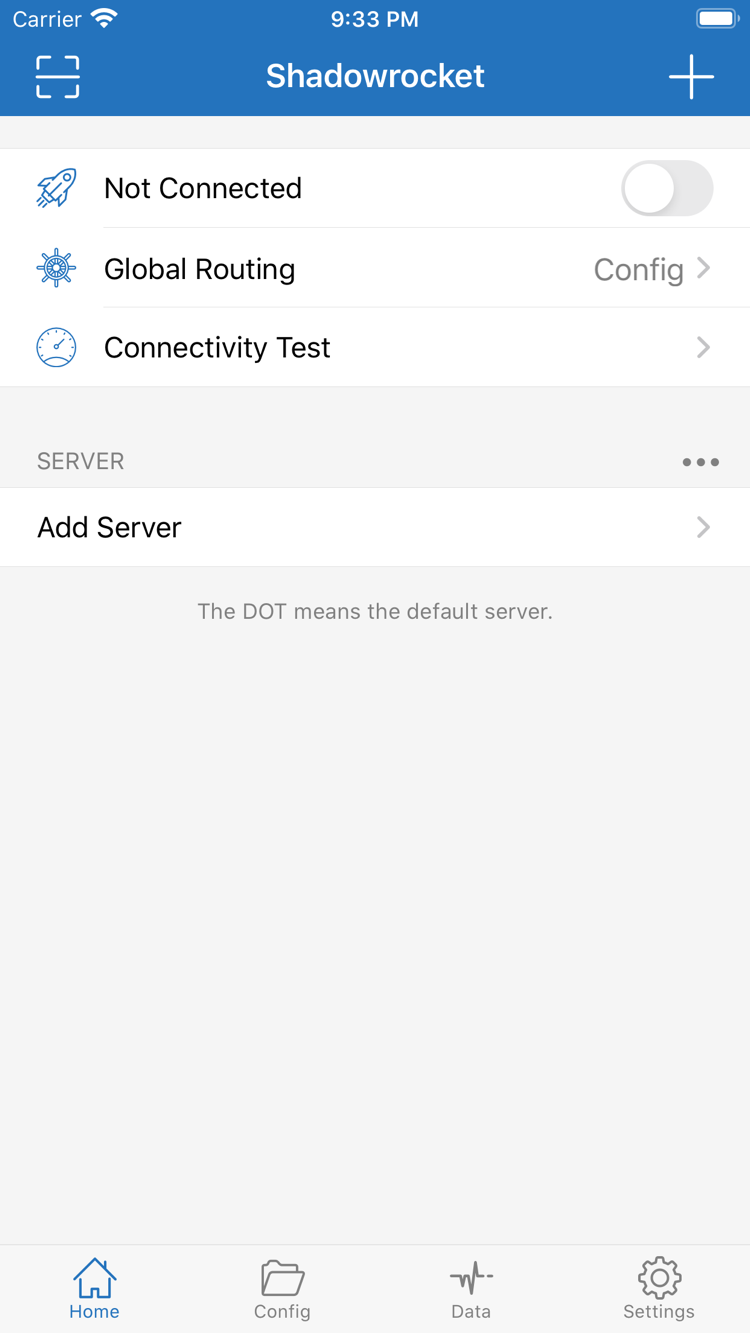
Open Shadowrocket, go to Home, and find Add Server near the SERVER section. You can also use the add button in the interface to open the same editor. Check Type before entering anything. Type determines which fields appear, so don’t choose a protocol just because its form is shorter. A subscription URL retrieves a list of entries; individual server details usually include a protocol, address, port, and authentication parameters. They serve different purposes.
Have a Subscription URL? Choose Subscribe
In Add Server, set Type to Subscribe and enter your complete subscription URL in URL. Check for spaces or line breaks at either end, and make sure you copied the entire address. Query parameters are part of the URL; don’t remove them to shorten it. You can add a note to distinguish configuration sources, but a note is only for local reference and won’t fix an invalid URL. Save using the option shown on the page, return to Home, and wait for the list to load.
Saving successfully and retrieving the list successfully are two different things. After returning to Home, check that the subscription contains actual server entries, not just a subscription name. If the list is empty or retrieval fails, first check whether your network can reach the subscription URL and whether the URL is still valid. Then check the subscription status with your existing service provider. Repeatedly toggling the connection won’t restore missing entries. If the subscription changes later, use its update option to retrieve it again. Before updating, keep any local notes you need and check that the selected entry hasn’t been removed.
Have Individual Server Details? Enter Each Field
If you have server parameters, choose the Type that matches the details, then enter Host, Port, and the other fields. Enter the server’s domain name or address in Host; don’t paste the entire subscription URL. Enter the supplied port in Port. For Shadowsocks, for example, Password and Method must match the server settings. Other protocols may have different authentication, TLS, or transport fields. Match each field to the original details; don’t use parameters from one protocol in another protocol’s form.
Check numbers and letters carefully, watch for spaces around passwords, and confirm that TLS-related names match the original configuration. If a field wasn’t provided, first check whether it’s required for that protocol; don’t guess based on an unrelated example online. Scan QR Code at the bottom of the page can read a configuration QR code you’re authorized to use. Import from Cloud JSON is for the relevant data format, not a general way to turn arbitrary text into a usable configuration. If you’re new to the app, use one import method at a time to make errors easier to trace.
After saving, return to Home and check that a recognizable entry appears under SERVER. Select the server you want to use. A subscription may contain multiple entries; importing it doesn’t guarantee the right one is selected. At this point, one server should be selected. Next, choose how requests will use it. Learn more about the difference between Subscribe and Config in the quick reference.
Global Routing:Choose a Routing Mode
Adding a server answers “where to connect”; Global Routing determines “how requests are handled.” Understand the difference before connecting.
Return to Home and tap Global Routing. Choose between Config, Proxy, and Direct. This sets the overall way requests are handled; it isn’t a server protocol or subscription type. After switching, return to Home and check the displayed mode so you don’t mistake the previous selection for the new one.
Config: Match Rules in the Active Configuration
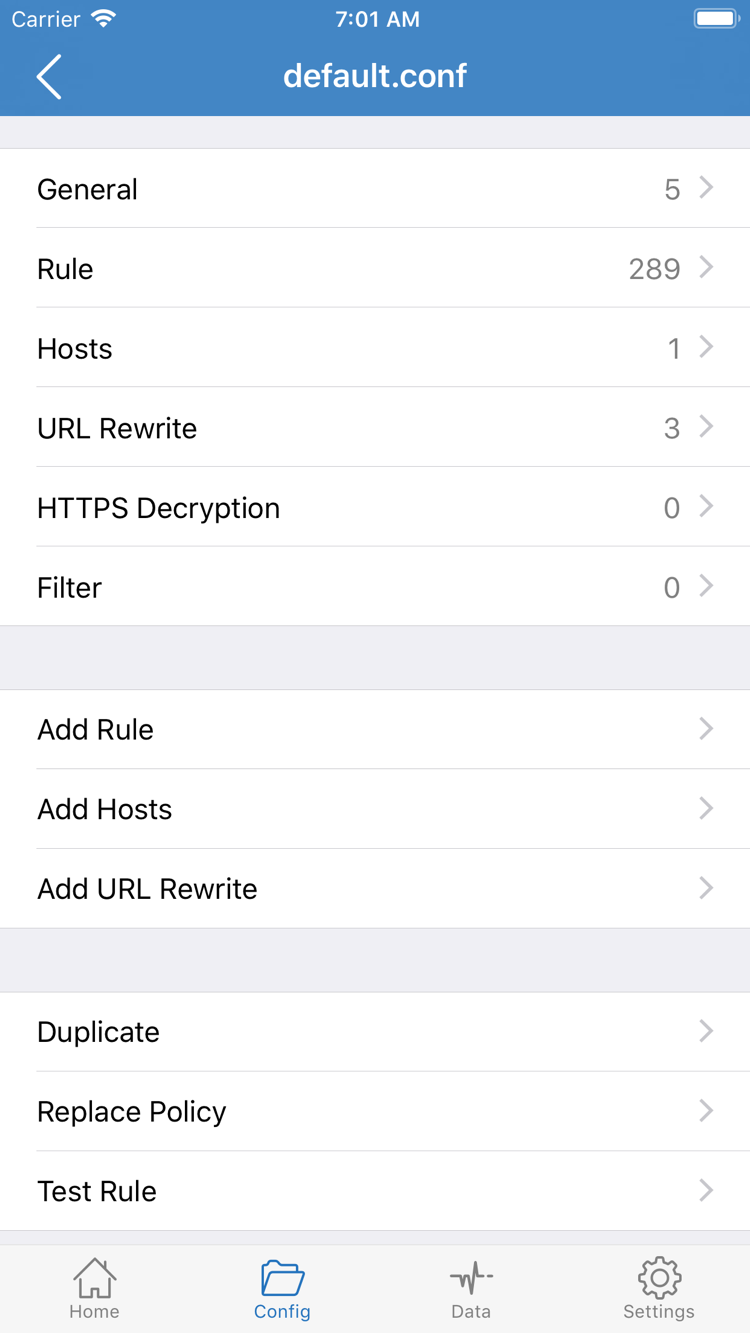
Config uses the rules in the active configuration to determine the policy for each request, such as DIRECT, PROXY, or another defined policy. Before using it, open Config, check which file is active, and review its Rule. Don’t judge a file by its name or assume that a file is active just because it appears in the list. If rules refer to specific policies or servers, confirm those are defined in the current configuration.
In the screenshot, General, Rule, Hosts, URL Rewrite, and HTTPS Decryption are different sections of a configuration file. You don’t need to edit every section for your first connection, or enable every related feature. Start with a configuration you understand and are authorized to use. Keep an original copy, confirm basic requests work, then add any needed rules one at a time. Add Rule creates a rule; it doesn’t add a server. Manage server entries on Home.
Rule order affects the result. If a request matches DIRECT first, a more specific PROXY rule later in the list may never be checked. So if a site connects directly even though a server is selected, the server may be saved correctly—the cause could be the match in Config. For now, focus on choosing and checking the mode. See Settings and Rules Reference for rule keywords and more configuration details. Avoid changing complex settings while setting up your first connection.
Proxy: Check the Selected Server’s Proxy Route
Proxy sends requests normally handled in this mode through the proxy route, which can help rule out interference from rule selection. It answers a narrower question: can the selected server reach the target without relying on the current routing rules? It isn’t a universal fix and won’t correct a password, port, or TLS field. After comparing results, switch back to Config if you want rules to determine routing during regular use.
Direct: Compare with a Direct Connection
Direct uses a direct connection; don’t expect requests to go through the selected server in this mode. To compare direct and proxy behavior, keep the same target address and retry the request after changing modes. Change one condition at a time to see what caused the difference. Note the selected mode and server. Use them as the starting point for connecting and verifying in the next step.
Home:Connect and Complete Authorization
Check the server and routing mode before using the top switch. System authorization allows the configuration to manage network traffic; it doesn’t confirm that remote access works.
Return to Home, check the selected entry under SERVER, and confirm that Global Routing is set to Config, Proxy, or Direct as intended. If you just updated a subscription, make sure the selected entry is still there. For your first test, keep the network stable. Don’t switch Wi-Fi, edit the configuration, or update a subscription while turning on the connection, or it may be hard to tell what changed the result.
Turn on the connection switch at the top of Home. The first time you connect, the system may ask permission to add a VPN configuration. Read the prompt, confirm it’s from the Shadowrocket app you just opened, then allow it and authenticate as required. This authorization lets the app establish a local network connection. It’s separate from buying the app, entering a subscription URL, or verifying a server password; none of these steps replaces another.
If you previously denied authorization, return to the app and try again. Watch for the system prompt. Don’t provide account information unrelated to device authentication just to complete authorization. If your device is managed by an organization, its restrictions may prevent VPN configurations from being added. Follow your organization’s device management requirements rather than repeatedly deleting existing configurations. System Settings paths can change between versions; follow what appears on your device.
After authorization, return to Home and wait for the connection status to change. Not Connected in the official screenshot means the app wasn’t connected when the screenshot was taken; it’s not a status you should keep. Check that the switch stays on and that the status changes to connected. If it turns off immediately or can’t connect, check authorization and parameters under Common Issues before treating a connection failure as a rules problem.
A connected status only means the local connection process has reached that state. It doesn’t prove a particular site is using PROXY or that a remote service is available. Likewise, a VPN icon in the system status bar doesn’t tell you the policy used for every request. Cross-check with Connectivity Test, actual site access, and request records. Before completing your first verification, avoid adding automation such as On Demand.
Connectivity Test:Verify It Works
Check three things separately: whether a connection can be established, whether the target is accessible, and whether requests follow the expected route. Each requires different evidence.
Run Connectivity Test on Home and review the result. The test depends on the current Test Method, target, and network conditions, so it reflects only that test. A result for one entry doesn’t mean every site is accessible, and a timeout doesn’t necessarily mean the authentication details are wrong. The test target may be unreachable, or the network may restrict a particular test method. Note the result, then try actual access. Don’t decide whether a configuration is correct based on a single number.
Open a browser and visit a page you’re authorized to use with an expected route you can identify. Check whether it reloads with content. Prefer a new request: a page already open may be cached or reuse an existing connection. To compare modes, keep the target and network unchanged and reload after each switch. Don’t change the server and target at the same time; even if it works, you won’t know which change made the difference.
In Config mode, review the request records or Log details provided by the app. Check the target domain, matched rule, and resulting policy. A target expected to use the proxy should match the relevant proxy policy; one expected to connect directly should show the corresponding direct result. A page loading proves access, not correct routing. Likewise, a rule in the configuration doesn’t prove that the request matched it. For detailed record and DNS checks, see the Log Settings Reference and DNS Settings Reference.
If access works in Proxy but fails in Config, first review the active configuration, rule order, policy references, and domain resolution path. If both modes fail, check the server, its parameters, and the current network. If Direct works, consider whether the target is normally accessible before concluding that the proxy is working. Test one or two targets at a time and keep the comparison clear rather than switching through many entries.
Keep a reproducible baseline: the server used, Global Routing mode, active configuration file, target address, and actual result. Use the same conditions to retest after enabling On Demand, changing DNS, or editing a Rule. That’s enough for a first setup; you don’t need to enable every feature just to finish configuring the app. For terminology, see the quick reference.
Settings & Troubleshooting:Change One Variable at a Time
Start with the earliest step that failed. Importing, connecting, resolving domains, and routing are separate stages; don’t reset every setting at once.
No Entries in the List? Check Subscription Retrieval
If no server is available to select on Home, check that the Subscribe URL is complete, whether the subscription request returned an error, and whether your existing subscription is still active. Wait for retrieval to finish before selecting an entry. Troubleshoot failed subscription retrieval separately from a server connection failure. Don’t swap a server’s Host with a subscription URL, and don’t post a link containing authentication parameters in a public discussion. Check whether the subscription is valid with your existing service provider; an app purchase receipt can’t verify it.
Entry Is There but Access Fails? Check Type and Authentication
Open the entry’s editor and compare Type, Host, Port, and authentication fields with the original details. Then check the transport and TLS parameters required by that protocol. Change only fields you’ve confirmed are incorrect, save, and test the same target again. Don’t disable certificate validation as a general troubleshooting step. Check the certificate name, system time, and configuration details separately. If all fields match but the issue persists, note the current network and error, then determine whether you need server-side status information.
Connection Switch Won’t Stay On? Check Authorization and Auto-Connect Conditions
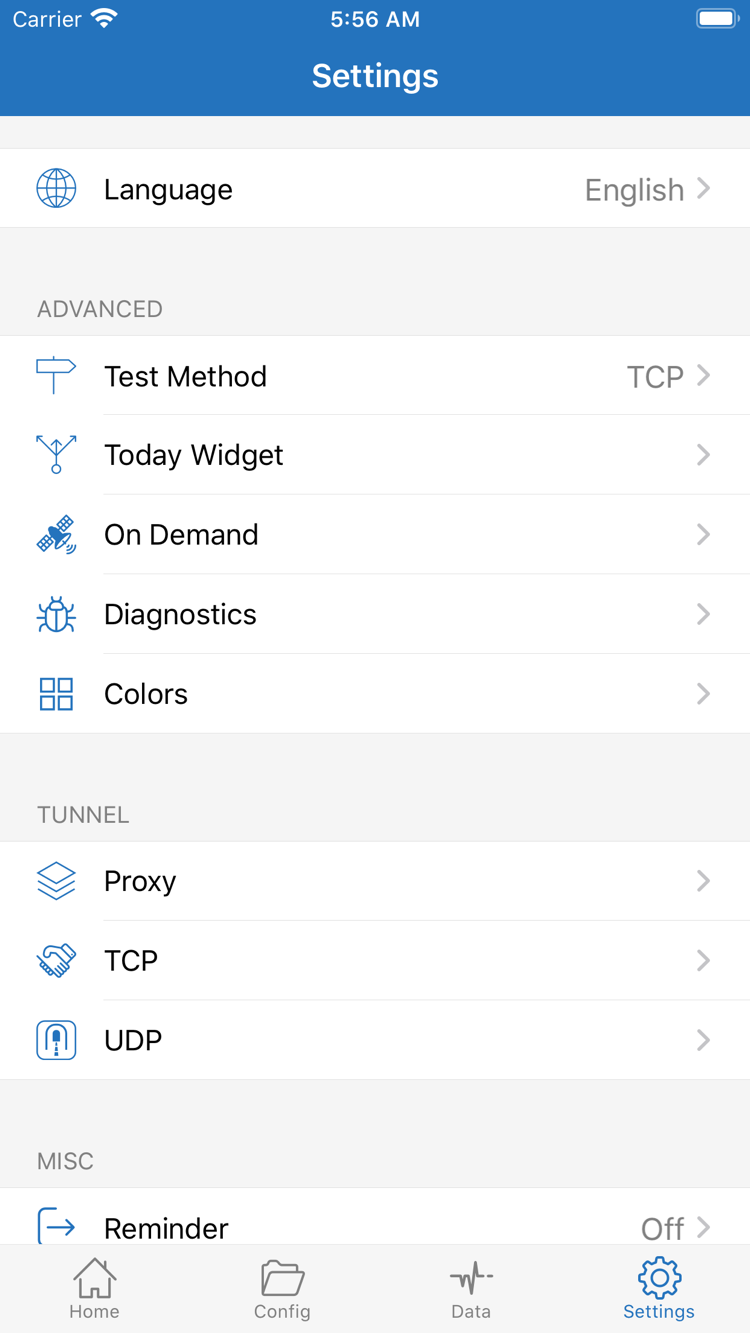
If the connection turns off before it’s established, first check whether the system allows a VPN configuration to be added and whether another enabled network configuration is affecting the connection. On Demand in Settings triggers connections under certain conditions; it won’t fix incorrect server parameters. If you’ve set up On Demand, check whether its conditions are triggering an automatic connection or changing the expected behavior. Set it up only as needed after confirming that a manual connection works. See the On Demand Reference.
Test and Actual Access Don’t Match? Check the Test Method and Request Records
Test Method in Settings affects how tests are run. Keep it the same when comparing results; a change in results after switching methods doesn’t automatically mean server performance has changed. For more detail, check the relevant Diagnostics options and compare them with the actual error in Log. Language and Today Widget aren’t required to fix authentication failures. Avoid changing multiple settings under Proxy, TCP, and UDP without a clear reason.
If only one domain fails, first check the rule match, DNS result, and status of the target itself. If all requests fail, return to the connection and parameters stages. If Proxy works but Config doesn’t, look for differences in the configuration instead of immediately re-entering the subscription. After each change, repeat the baseline test from step four. Keep the change only if the improvement is reproducible.
Before Sharing Troubleshooting Details: Remove Sensitive Information
Note which step failed, the current mode, protocol, error message, and whether the issue is reproducible. Don’t share a complete subscription URL, password, authentication ID, or configuration file containing private information. Screenshots and logs may contain these details too, so check them before sharing. Keep an original copy of your configuration so you can restore a known starting point after trying changes. For scenario-based help, see Troubleshooting. To review each setting, see the Settings Guide.